# Spin your own VS Code in Digital Ocean

<!-- wp:paragraph -->
<p>In the <a href="https://qainsights.com/spin-vs-code-for-the-web-in-the-digital-ocean" target="_blank" rel="noreferrer noopener">last post</a> we saw how to spin VS Code in Digital Ocean droplet using Coder's GitHub repo. In this blog post, let us see how to spin your own VS Code using the official VS Code Server. </p>
<!-- /wp:paragraph -->

<!-- wp:heading -->
<h2>Prerequisites</h2>
<!-- /wp:heading -->

<!-- wp:paragraph -->
<p>Currently, it is in beta. You need to <a href="https://aka.ms/vscode-server-signup" target="_blank" rel="noreferrer noopener">apply it</a> using your GitHub account to be added. Otherwise, you cannot spin up the code.</p>
<!-- /wp:paragraph -->

<!-- wp:paragraph -->
<p>Then, you need a cloud instance (or local) to spin up the code server. In this demo, let us use a basic droplet from Digital Ocean. </p>
<!-- /wp:paragraph -->

<!-- wp:paragraph -->
<p>You can see the instructions in my <a href="https://qainsights.com/spin-vs-code-for-the-web-in-the-digital-ocean" target="_blank" rel="noreferrer noopener">earlier post</a>.</p>
<!-- /wp:paragraph -->

<!-- wp:heading -->
<h2>Steps to spin</h2>
<!-- /wp:heading -->

<!-- wp:paragraph -->
<p>Login into your instance and run the update command. In this example, I spun up an instance running Fedora 36. The following commands will update and install wget.</p>
<!-- /wp:paragraph -->

<!-- wp:code -->
<pre class="wp-block-code"><code>dnf update -y

dnf install wget -y</code></pre>
<!-- /wp:code -->

<!-- wp:paragraph -->
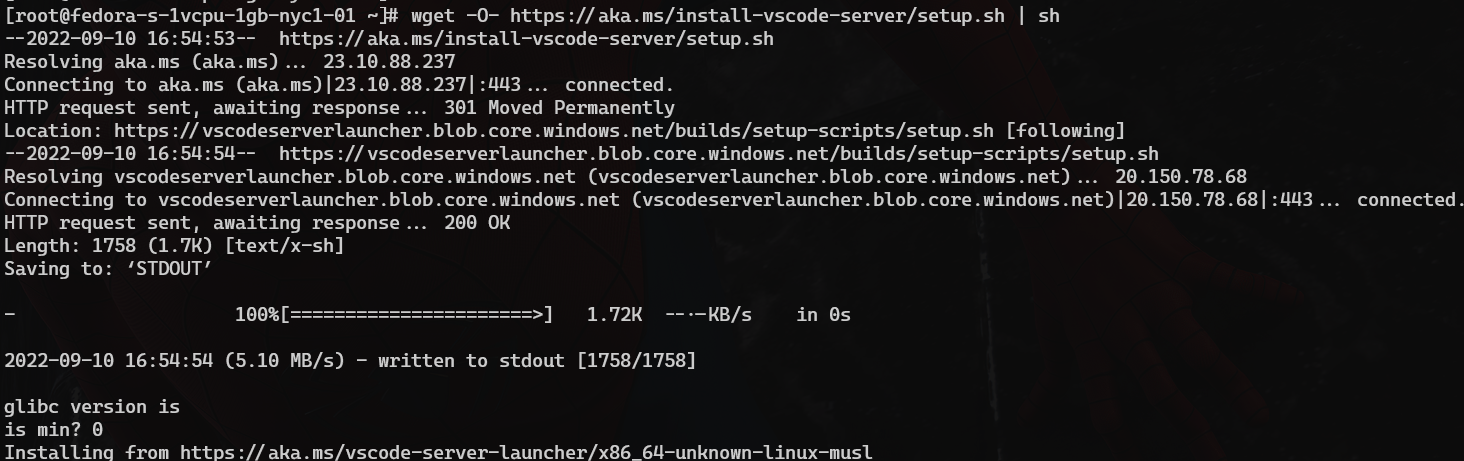
<p> To install VS Code server, issue the below command:</p>
<!-- /wp:paragraph -->

<!-- wp:code -->
<pre class="wp-block-code"><code>wget -O- https://aka.ms/install-vscode-server/setup.sh | sh</code></pre>
<!-- /wp:code -->

<!-- wp:paragraph -->
<p>You will get the similar output once the command executed successfully.</p>
<!-- /wp:paragraph -->

<!-- wp:image {"align":"center","id":9761,"sizeSlug":"large","linkDestination":"media"} -->
<figure class="wp-block-image aligncenter size-large"><a href="https://qainsights.com/wp-content/uploads/2022/09/image-15.png"><img src="https://qainsights.com/wp-content/uploads/2022/09/image-15-1024x322.png" alt="VS Code Server Install" class="wp-image-9761"/></a><figcaption>VS Code Server Install</figcaption></figure>
<!-- /wp:image -->

<!-- wp:paragraph -->
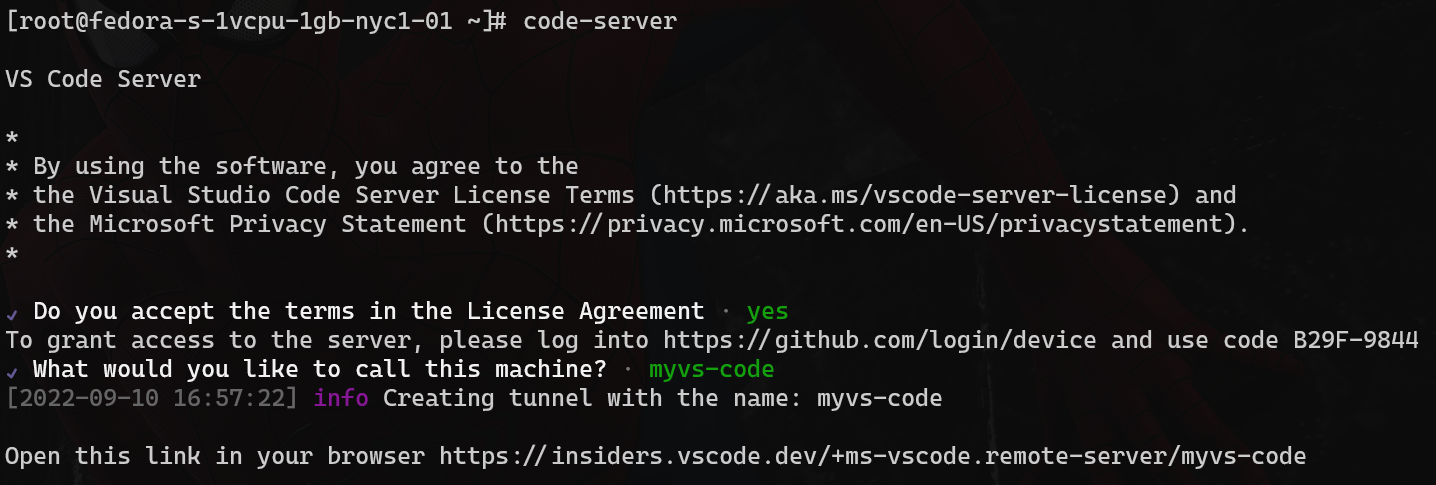
<p>To start the <code>code-server</code> issue <code>code-server</code> command and hit enter as shown below.</p>
<!-- /wp:paragraph -->

<!-- wp:paragraph -->
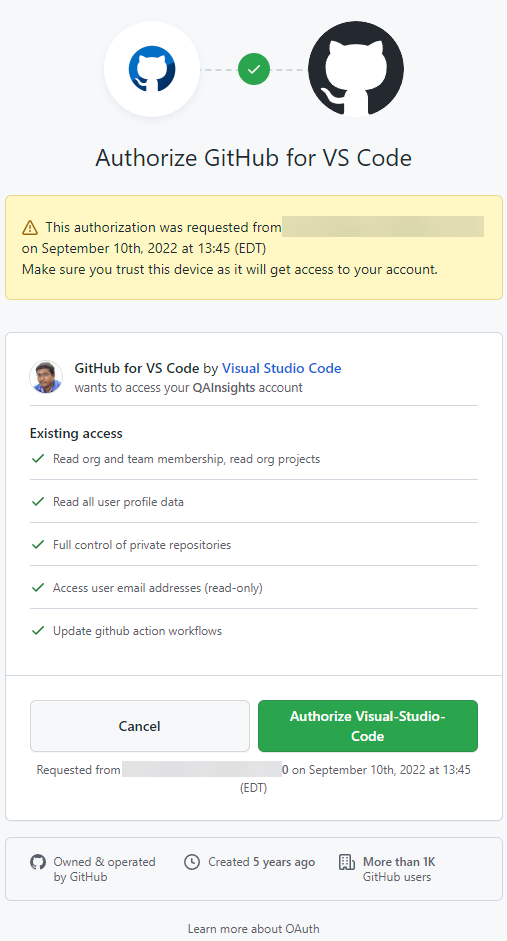
<p>The first step is to agree the license terms by hitting enter you will accept it. Once the terms are accepted, launch the URL and enter the one-time code to grant access to your GitHub profile.</p>
<!-- /wp:paragraph -->

<!-- wp:image {"align":"center","id":9768,"sizeSlug":"full","linkDestination":"media"} -->
<figure class="wp-block-image aligncenter size-full"><a href="https://qainsights.com/wp-content/uploads/2022/09/image-20.png"><img src="https://qainsights.com/wp-content/uploads/2022/09/image-20.png" alt="GitHub Auth" class="wp-image-9768"/></a><figcaption>GitHub Auth</figcaption></figure>
<!-- /wp:image -->

<!-- wp:paragraph -->
<p>The last step is to name your instance. In this example, I gave <code>myvs-code</code> and hit enter.</p>
<!-- /wp:paragraph -->

<!-- wp:paragraph -->
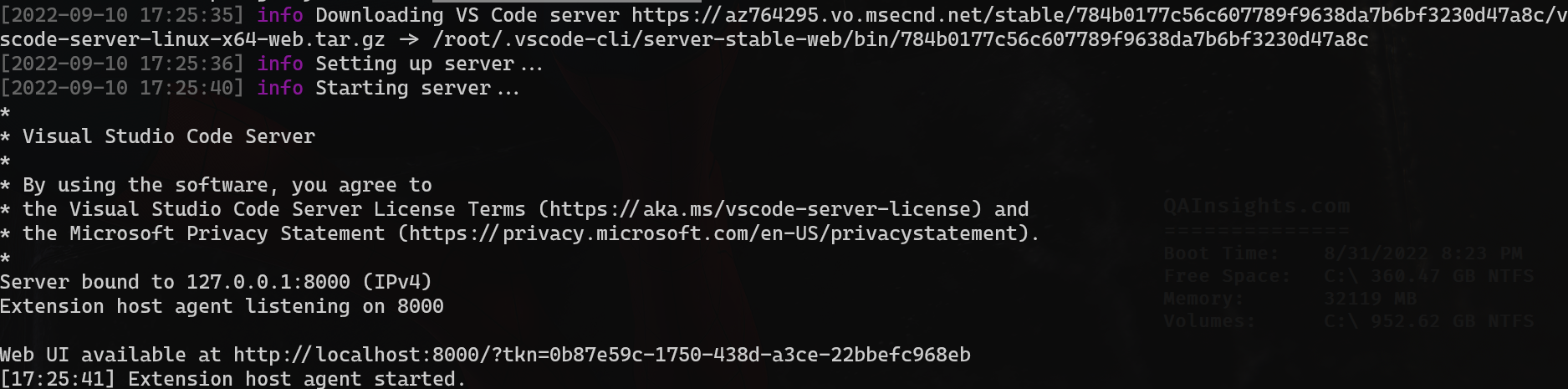
<p>Finally, you will get the VS Code URL as shown below.</p>
<!-- /wp:paragraph -->

<!-- wp:image {"align":"center","id":9762,"sizeSlug":"large","linkDestination":"media"} -->
<figure class="wp-block-image aligncenter size-large"><a href="https://qainsights.com/wp-content/uploads/2022/09/image-16.png"><img src="https://qainsights.com/wp-content/uploads/2022/09/image-16-1024x346.png" alt="code-server" class="wp-image-9762"/></a><figcaption>code-server</figcaption></figure>
<!-- /wp:image -->

<!-- wp:paragraph -->
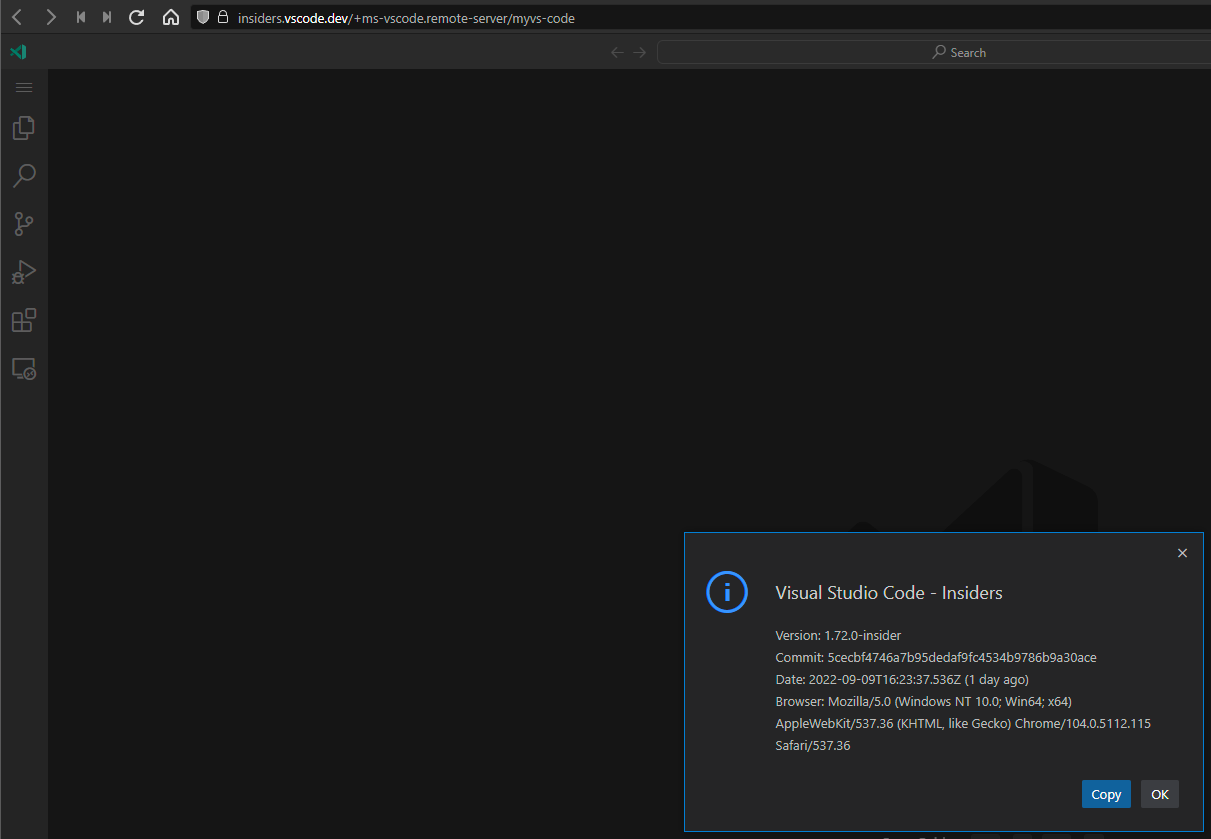
<p>Viola. You got your own VS Code instance.</p>
<!-- /wp:paragraph -->

<!-- wp:image {"align":"center","id":9763,"sizeSlug":"large","linkDestination":"media"} -->
<figure class="wp-block-image aligncenter size-large"><a href="https://qainsights.com/wp-content/uploads/2022/09/image-17.png"><img src="https://qainsights.com/wp-content/uploads/2022/09/image-17-1024x709.png" alt="VS Code Server" class="wp-image-9763"/></a><figcaption>VS Code Server</figcaption></figure>
<!-- /wp:image -->

<!-- wp:heading -->
<h2>Code Server CLI</h2>
<!-- /wp:heading -->

<!-- wp:paragraph -->
<p>To terminate the session, press <code>Ctrl + C</code>. Now, let us see the <code>code-server</code> CLI commands.</p>
<!-- /wp:paragraph -->

<!-- wp:paragraph -->
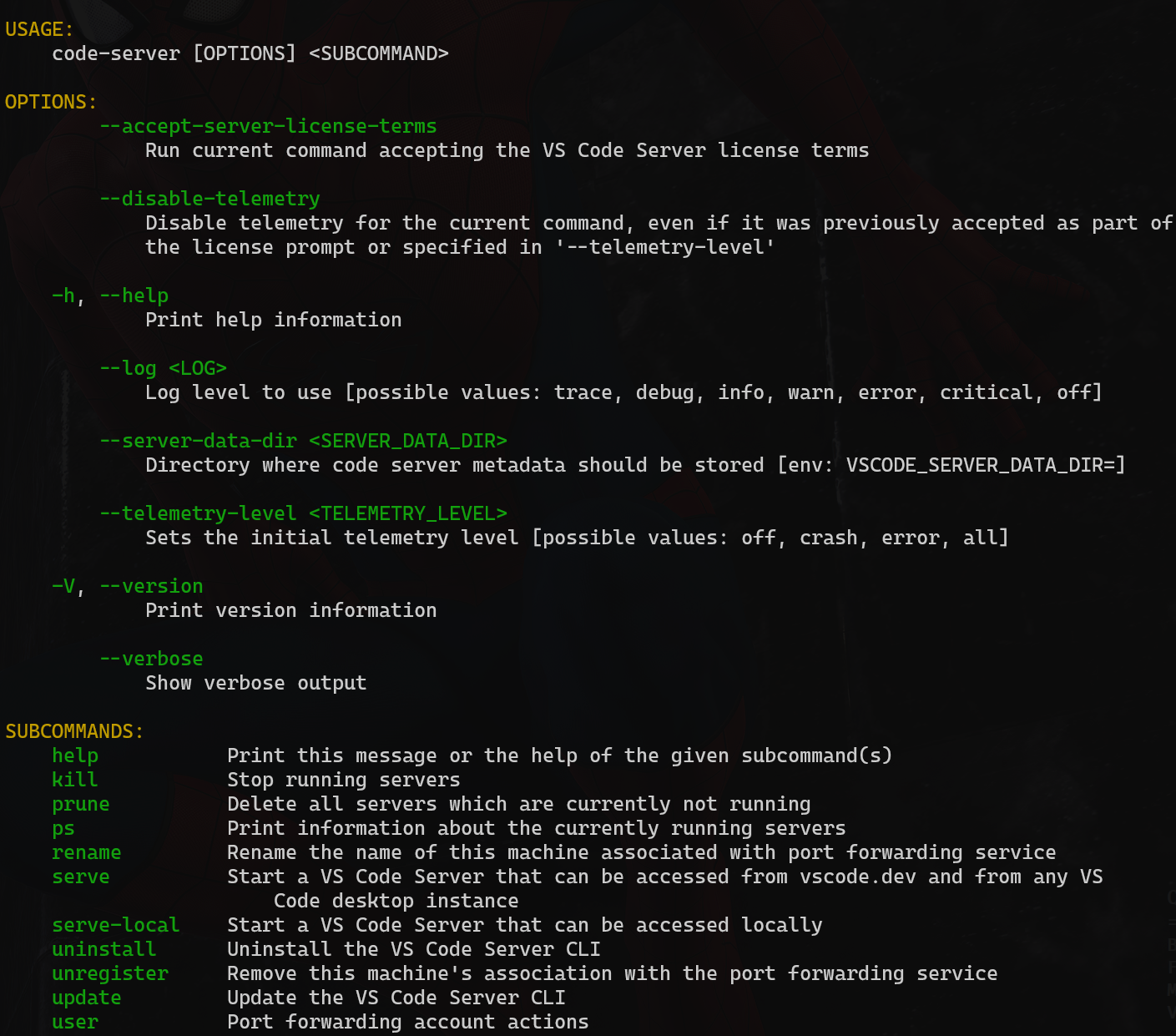
<p>To view the help commands, issue <code>code-server -h</code>.</p>
<!-- /wp:paragraph -->

<!-- wp:image {"align":"center","id":9764,"sizeSlug":"large","linkDestination":"media"} -->
<figure class="wp-block-image aligncenter size-large"><a href="https://qainsights.com/wp-content/uploads/2022/09/image-18.png"><img src="https://qainsights.com/wp-content/uploads/2022/09/image-18-1024x902.png" alt="code-server -h" class="wp-image-9764"/></a><figcaption>code-server -h</figcaption></figure>
<!-- /wp:image -->

<!-- wp:paragraph -->
<p>To disable telemetry while spinning up, issue <code>code-server --disable-telemetry</code></p>
<!-- /wp:paragraph -->

<!-- wp:paragraph -->
<p>To print information about the running servers, issue <code>code-server ps</code>. or <code>code-server ps | jq '.[0].commit'</code></p>
<!-- /wp:paragraph -->

<!-- wp:paragraph -->
<p>Copy the commit ID and issue <code>code-server kill &lt;commit_id&gt;</code></p>
<!-- /wp:paragraph -->

<!-- wp:paragraph -->
<p>This will kill the running VS Code server instance.</p>
<!-- /wp:paragraph -->

<!-- wp:paragraph -->
<p>To run the VS Code Server locally, issue <code>code-server serve-local</code></p>
<!-- /wp:paragraph -->

<!-- wp:image {"align":"center","id":9765,"sizeSlug":"large","linkDestination":"media"} -->
<figure class="wp-block-image aligncenter size-large"><a href="https://qainsights.com/wp-content/uploads/2022/09/image-19.png"><img src="https://qainsights.com/wp-content/uploads/2022/09/image-19-1024x254.png" alt="code-server local" class="wp-image-9765"/></a><figcaption>code-server local</figcaption></figure>
<!-- /wp:image -->

<!-- wp:paragraph -->
<p>To launch your VS Code server from vscode.dev or from any VS Code desktop instance use <code>code-server serve</code></p>
<!-- /wp:paragraph -->

<!-- wp:paragraph -->
<p>To rename the VS Code instance, use <code>code-server rename --name newname</code></p>
<!-- /wp:paragraph -->

<!-- wp:paragraph -->
<p>To update VS Code, use <code>code-server update</code></p>
<!-- /wp:paragraph -->

<!-- wp:paragraph -->
<p>To prune the servers which are not running, use <code>code-server prune</code></p>
<!-- /wp:paragraph -->

<!-- wp:paragraph -->
<p>To unregister your machine from port forwarding, use <code>code-server unregister</code></p>
<!-- /wp:paragraph -->

<!-- wp:paragraph -->
<p>By default, VS Code server stores in the current user's dir or root, to customize it, issue the <code>code-server --server-data-dir &lt;your_folder_name&gt;</code></p>
<!-- /wp:paragraph -->

<!-- wp:generateblocks/headline {"uniqueId":"08ab4810"} -->
<h2 class="gb-headline gb-headline-08ab4810 gb-headline-text">Final Thoughts</h2>
<!-- /wp:generateblocks/headline -->

<!-- wp:paragraph -->
<p>Using code server it is easy to spin up in any cloud and code server CLI helps to manage it easily. But the next question, can we install it using containers or Kubernetes or via Helm? I am not sure. If you find the answers, please share it in the comments.</p>
<!-- /wp:paragraph -->